The Login Widget helps attendees log in with a single click (usually via LinkedIn) before creating their advocacy posters. This removes the need to manually fill in their details and helps generate posters instantly after registration, improving both conversion rates and attendee experience.
Here’s how to set it up correctly.
1. Where to Place the Login Widget
The placement of the Login Widget directly impacts how easily attendees engage with it and how smooth the login-to-registration flow feels.
a. As the Primary CTA on the Page
Use the Login Widget as the main call-to-action before attendees reach the registration form.
When clicked, it should:
Prompt the attendee for authentication (for example, via LinkedIn).
After successful login, take the attendee to the registration form with their details (name, company, photo) automatically pre-filled.
This approach creates a seamless, natural flow; attendees log in first, see their information ready, and continue to complete registration effortlessly.
b. Inside the Registration Form
You can also include the Login Widget as a button within the registration form.
When clicked, it performs the same authentication and auto-fill process, allowing attendees to sign in and personalize their experience before submitting the form.
2. How to Embed the Login Widget
Embedding the Login Widget is quick and straightforward.
Steps to Add the Widget:
Copy the Login Widget code from your Premagic Dashboard.
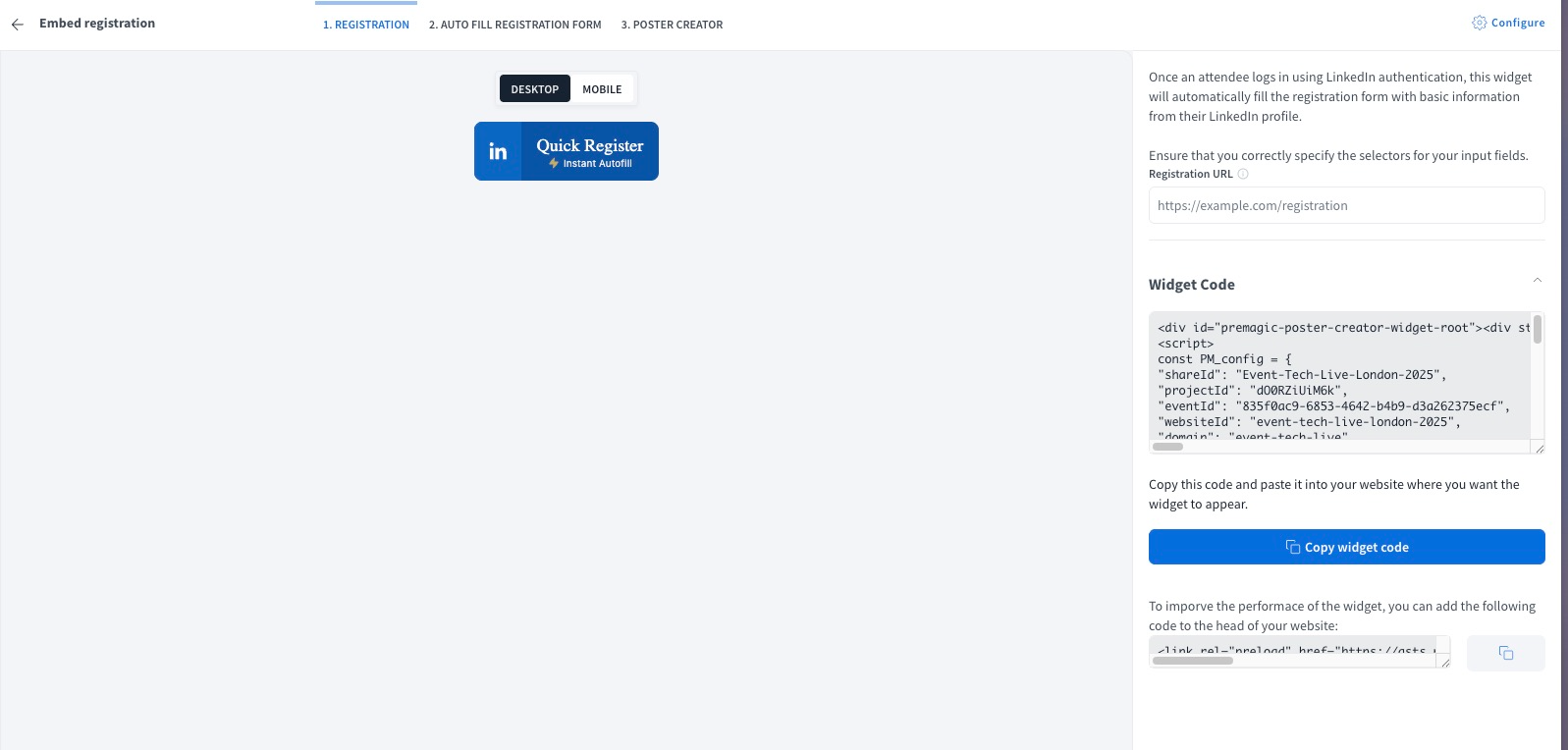
Paste the code into your registration page where you want the widget to appear. Most registration platforms allow adding custom HTML or JavaScript snippets.
Once added, the widget will automatically connect with your registration form and poster flow to create a seamless experience for attendees.
Tip: Script embedding ensures smooth communication between the registration form, poster widget, and dashboard and provides full functionality like automatic data capture and conversion tracking.
3. Connect It to the Registration Form
Once the widget is embedded, link it with your registration form using the Form Capture Widget code.
This enables:
Auto-filling of attendee details after login
Seamless transition into poster creation without re-entering data
Improved data accuracy (since LinkedIn details are verified)
Example: After an attendee signs in via LinkedIn → their name, role, company automatically appear in the registration form and poster flow.
4. Test the Flow End-to-End
Before going live, test the following:
User clicks “Login with LinkedIn” → authentication works correctly
Details are fetched and prefilled in the registration form
Registration completes without errors
Poster is generated instantly after registration
Pro tip: Test on both desktop and mobile browsers.
In some setups, pop-up blockers or i-frame restrictions can interfere with login windows.
Summary
Setting up the Login Widget correctly helps attendees skip extra steps and go straight from login → registration → poster creation.
Here’s a quick checklist:
✅ Use it as the primary CTA before the registration form
✅ Or as a button within the form
✅ Embed using the script (preferred)
✅ Connect with the form capture code
When implemented well, the Login Widget can increase poster creation rates by up to 30%, making it one of the simplest ways to boost engagement on your event’s advocacy campaign.
Was this article helpful?
That’s Great!
Thank you for your feedback
Sorry! We couldn't be helpful
Thank you for your feedback
Feedback sent
We appreciate your effort and will try to fix the article